Select a markdown file in Finder, press Space, and your Mac shows you raw text: every #, * and | in a small plain font. Quick Look doesn't know how to read markdown on its own. An app can teach it, and it takes about a minute.
What Quick Look is
Quick Look is the preview built into every Mac. Click a file in Finder, press Space, and a window pops up showing what's inside, without opening any app. Press Space again and it's gone. It works out of the box for photos, PDFs and Word files. For anything else, an app has to add a Quick Look extension that knows the format.
Set it up
I made MarkeMark for exactly this. It's free, it's signed and notarized by Apple, and it runs on macOS 13 or later.
- Download MarkeMark and open the DMG.
- Drag MarkeMark into your Applications folder.
- Open it once, so macOS registers its Quick Look extension. You can quit it right after.
- In Finder, select any
.mdor.markdownfile and press Space.
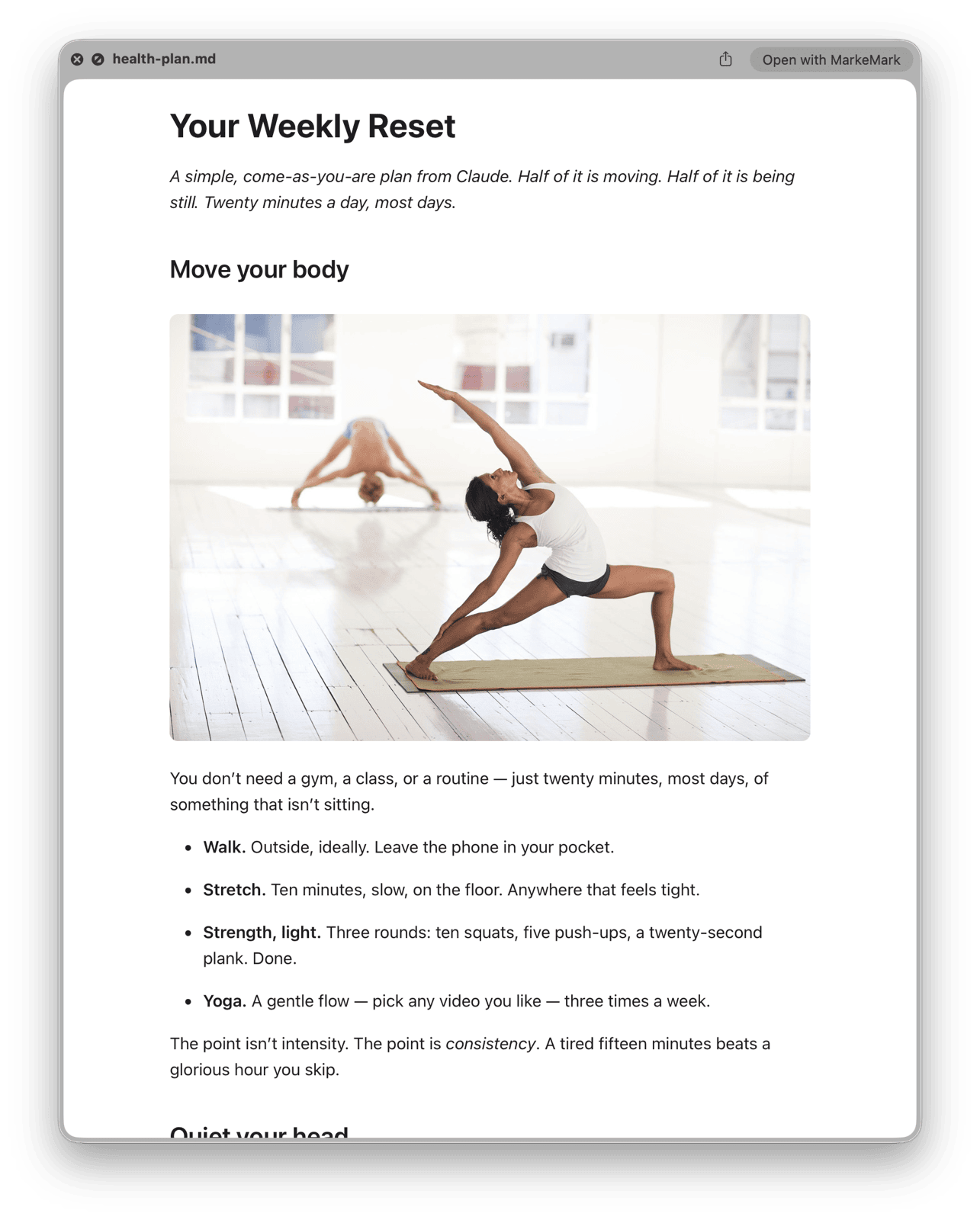
You get headings, lists, tables, code with syntax highlighting, and pictures. Images linked with a relative path show up, and so do Obsidian-style embeds like ![[photo.png]]. The preview follows your Mac's light or dark mode. Nothing is changed or saved: Quick Look only reads the file.
If you still see raw text
- Check that MarkeMark is in
/Applications, not in Downloads or on the Desktop, and that you opened it once. - Check that the extension is switched on.
- macOS 15 or later: System Settings, General, Login Items & Extensions. Under Extensions, open Quick Look and make sure MarkeMark is on.
- macOS 13 or 14: System Settings, Privacy & Security, Extensions, Quick Look.
- Only one markdown previewer can win. If you installed another one before, switch its Quick Look extension off in the same place.
- Reset Quick Look. Open Terminal, paste
qlmanage -rand press Return. Then relaunch Finder: hold Option, right-click the Finder icon in the Dock, and choose Relaunch.
Still stuck? Email me at hi@markemark.app with your macOS version and I'll take a look.
On iPhone and iPad
The Files app has the same problem: a markdown file opens as raw source. There's a free beta of MarkeMark for iPhone and iPad that shows it rendered instead, and you can swipe through the rest of the folder.
Also in the app
MarkeMark is a full markdown editor too: raw markdown on one side, the rendered page on the other, and you can type in either. It also prints markdown and saves it as a PDF in one to nine columns.